Shadowrocket Setup and Connection
Follow the steps in order: add a server, choose a mode, connect, test, and troubleshoot. Start by establishing a connection you can verify, then adjust rules and automatic connection settings.
These steps focus on iPhone and iPad. Interface labels are kept in English, and screenshots help you find each control. The layout and available options may vary; refer to the current app interface.
01 · Add Server and Subscribe
Choose one method based on the details you have. You don't need to import the same connection more than once.
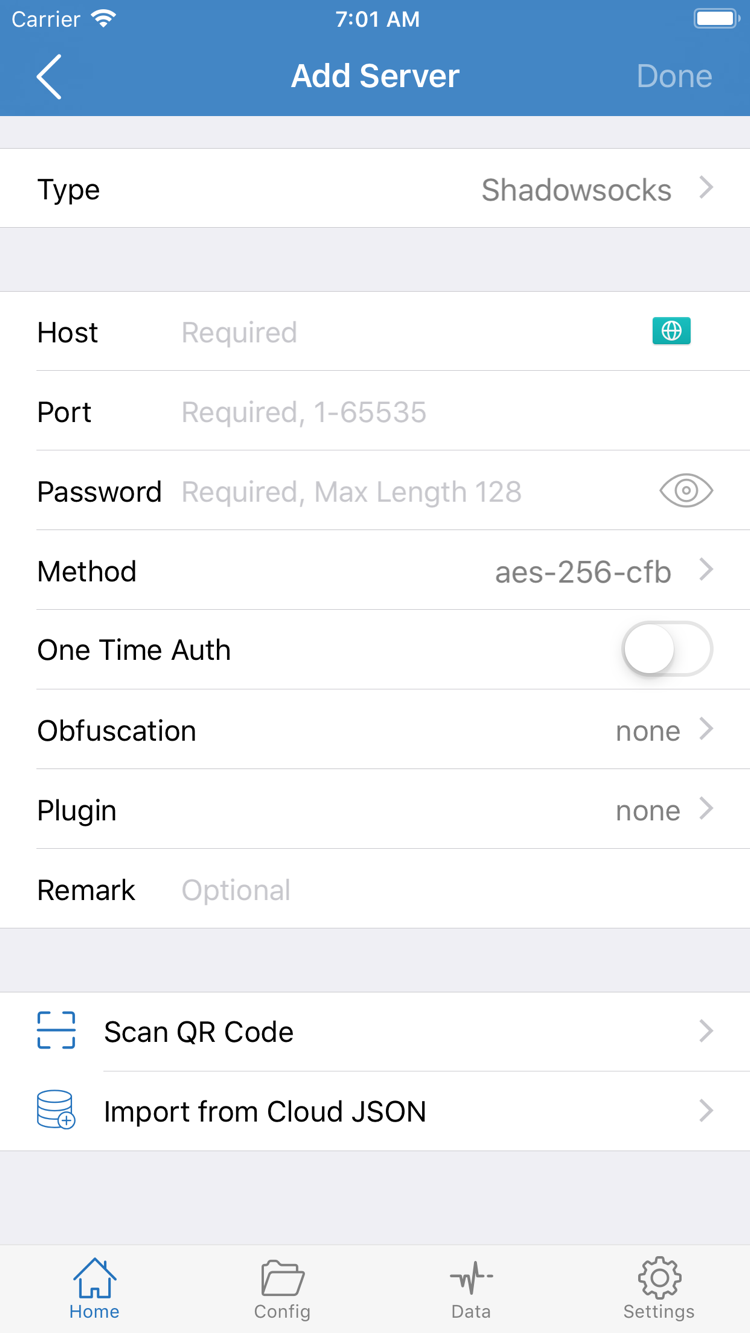
Open Shadowrocket and go to Home at the bottom. Under SERVER, tap Add Server. You can also use the add control in the interface to open the editor. First, identify what you have: individual server details, a complete subscription URL, or a compatible QR code. Each requires a different import method. A subscription URL is not a server Host; don't split the full URL between Host and Port.
Have Server Details? Select Type, Then Enter the Fields
On the Add Server page, tap Type and select the protocol that matches your server details. For example, with Shadowsocks, enter Host, Port, Password, and Method exactly as provided. Enter the server's domain name or address for Host and the port number for Port. Method must match the server; don't guess based on a similar name. The fields vary by Type, so the fields shown in the screenshot won't apply to every protocol.
Check that copied values have no extra spaces, that the port uses standard digits, and that your keyboard hasn't changed punctuation in the password. If your details include TLS, a transport type, or other parameters, check each against the original instructions. Filling in the four basic fields alone may not be enough. When finished, tap the save or done control, return to Home, and confirm that the entry appears under SERVER.
Have a Subscription URL? Use Subscribe
If you have a complete subscription URL, select Subscribe under Type, paste the entire link into the URL field, add a label to identify it, and save. Query parameters in the URL may contain access credentials; don't remove or share them casually. Wait for the content to load. If the interface offers an update option, update the subscription once, then check whether its server entries appear.
A subscription groups servers for management; it doesn't mean every listed server has been tested. In Home, select one server to test and note its name. Keep using that server throughout the test. If the list is empty, check that the URL is still valid, was copied in full, and can be reached over your current network. Avoid adding the same URL repeatedly.
Have a QR Code? Use Scan QR Code
On the Add Server page, tap Scan QR Code and grant camera access if prompted. Position your compatible QR code fully within the viewfinder. After scanning, check whether it imported a single server or a subscription, then verify details such as Type, Host, or URL. Scanning only enters the details; it doesn't verify that they're valid. If scanning fails, enter the original URL or fields instead. Don't try to fix the issue by editing the QR code contents.
Import from Cloud JSON at the bottom of the page is another way to import connection details, not a general replacement for any subscription URL. Use it only when your existing details are explicitly in the supported format. After adding a connection by any method, decide how Global Routing should handle traffic before changing advanced settings.
02 · Choose Global Routing
The server determines the connection destination; Global Routing determines how traffic is handled.
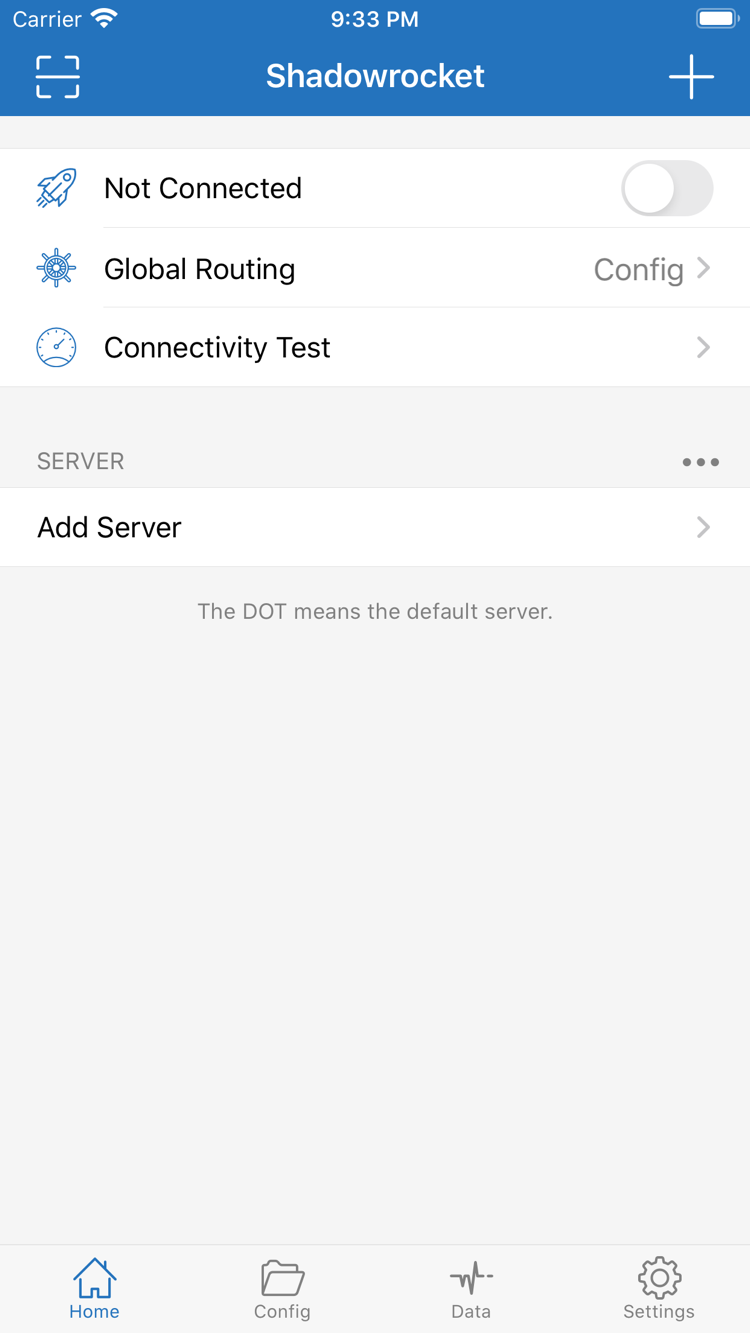
Return to Home and tap Global Routing. The three modes are Config, Proxy, and Direct. They are not server protocols or substitutes for the connection switch. After choosing a mode, you still need to connect to test the actual route.
Config handles traffic according to the rules in the active configuration. Different destinations may use PROXY, DIRECT, or another defined policy. For everyday rule-based routing, check the configuration source and contents before selecting this mode. Selecting a server under SERVER doesn't mean every request will go through it. If a destination matches DIRECT, a direct connection is the result of the rule.
Proxy uses the selected proxy route for typical traffic handling. Use it briefly to check whether a server is reachable or to isolate the effect of routing rules. It doesn't guarantee that every app request follows the same observable path; check the destination and connection records. Direct connects directly to a destination and can serve as a baseline network check. If a destination opens in Direct mode, that doesn't prove the proxy server is working.
Check the Active Configuration Before Using Config
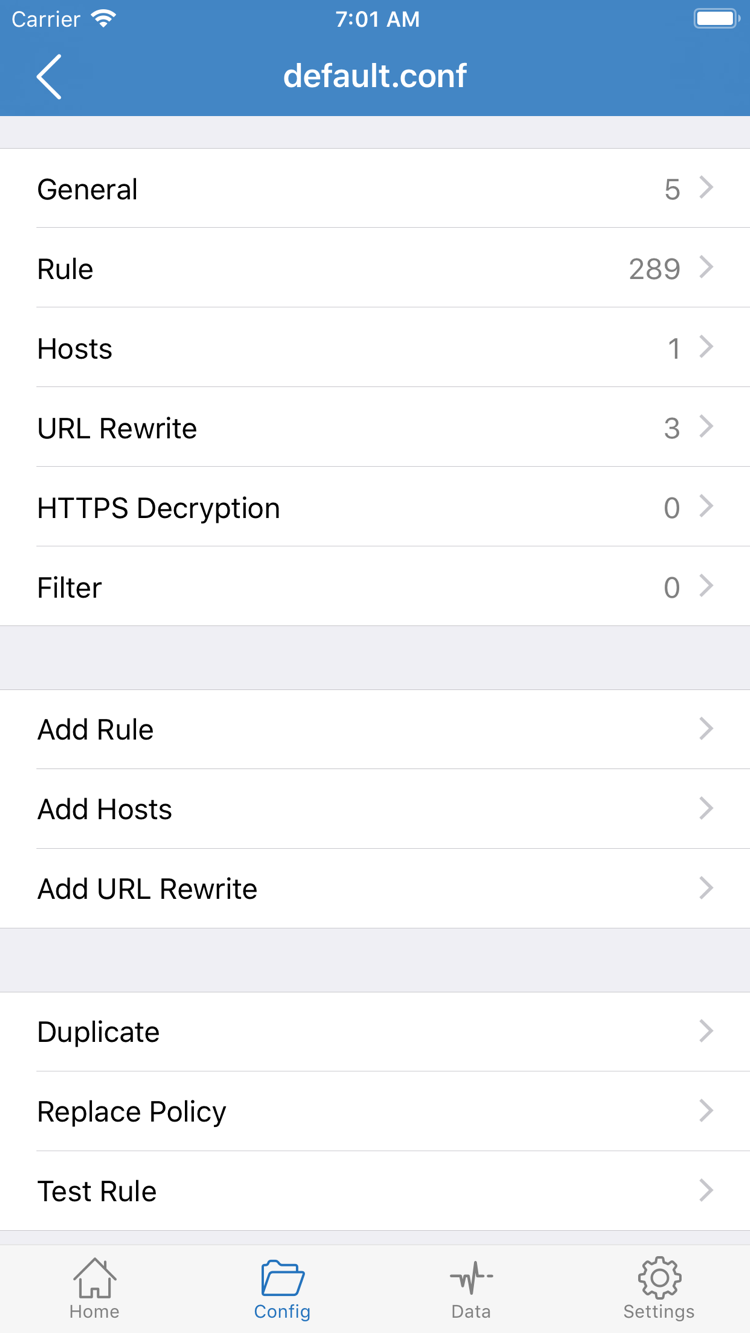
Open Config at the bottom and confirm which configuration you plan to use, then open it to inspect its contents. The official screenshot shows the configuration editor, with sections such as General, Rule, Hosts, URL Rewrite, and HTTPS Decryption. This is not the Global Routing menu. Make sure you know where each control is so you don't mistake editing a configuration for changing the routing mode.
For a first check, focus on Rule: see which policies the domain rules, network-range rules, and final rule point to, and make sure any referenced policies exist. Before adding rules with Add Rule, save a copy of the original configuration. Rules are usually matched in order, so an earlier match affects what happens next. For example, DOMAIN-SUFFIX matches a domain suffix, while FINAL handles traffic that didn't match an earlier rule.
You don't need to change URL Rewrite or HTTPS Decryption to establish your first connection. Keep changes to a minimum so you can tell whether an issue is with the server, rules, or network. If you don't have a verified rule configuration, briefly use Proxy to test connectivity, then review Config one item at a time. For details on rules and protocol fields, see Protocol Reference. For specific usage questions, see the FAQ.
03 · Connect from Home and Authorize
Confirm the selected server and mode, then turn on the switch at the top.
Return to Home. First, confirm that SERVER shows the server you just entered or imported. Check that the Global Routing mode matches your test. If you're using Config, make sure the configuration you checked is active. Once all three are confirmed, turn on the connection switch near the Not Connected status at the top.
The first time you connect, the system may ask permission to add a VPN configuration. This means Shadowrocket needs to use a system network extension to handle the relevant traffic; this step only grants network permission. Review the app name and permission details, then allow access if you choose. Complete device authentication if prompted. If you cancel, the connection won't start; return to the app and try again rather than repeatedly importing the server.
When authorization is complete, return to Home and check whether the connection switch and status text have updated. If the app still shows Not Connected, wait for the current request to finish and check for any pending system prompts. Don't rely on a status bar icon alone: its appearance may vary by device and screen. Check the in-app status and the results of an actual request.
A Connected Status Doesn't Guarantee That a Destination Is Reachable
An enabled switch means the system connection process is established or in progress; it doesn't by itself confirm that the selected server, DNS, and destination service are all working. Next, run Connectivity Test and open a page you actually need to use. If another configuration is managing the device's network connection, check which one is active to avoid interference during testing.
For the first test, leave On Demand conditions unchanged and don't switch networks or servers mid-test. To end the test, return to Home, turn off the connection switch, and check that the status updates. Your connection details remain saved; turning off the switch doesn't delete a subscription or server.
04 · Connectivity Test and Real-World Checks
Compare the test result, destination access, and routing records.
In Home, tap or run Connectivity Test and wait for the result. The test shows connectivity under current conditions; it doesn't guarantee access to every destination. Results depend on the test method, test target, current network, and server status. A single timeout doesn't mean every request has failed, and a single success doesn't confirm that every rule is correct.
Next, open the destination you actually need and send a new request. Use a newly opened page where possible, so cached content doesn't make it look as if the current route is working. If the destination is accessible directly, seeing it open doesn't tell you whether traffic used a proxy or a direct connection. Check Global Routing and connection records as well.
Check Policies and Connection Details in Data
Return to the app and open Data to review any connection or request records available in the current interface. If you can see the destination, matched rule, or policy, check that it matches your expectations. Under Config, a request matching DIRECT doesn't mean the proxy failed to connect. A request matching PROXY that fails needs further checks of the server and destination. Record names and level of detail vary by feature and interface; refer to what's shown in the app.
If you still can't identify the issue, note the original mode, briefly switch to Proxy, and retry the same destination. Then switch to Direct for a baseline network comparison. Change only the mode; keep the server, network, and destination the same so the results are comparable. If Proxy works but Config doesn't, check the rules and referenced policies first. If both fail, check the server details and basic network.
After testing, restore the mode you plan to use every day. If you switch back to Config, confirm the intended configuration is active. Don't leave a temporary troubleshooting mode in place without knowing why. Note the server name, mode, network type, and symptoms from this test; don't save or share subscription URLs, passwords, or other credentials. Once this is done, consider whether to set up automatic connection features such as On Demand.
05 · Settings and Common Issues
Check the network, connection details, authorization, and rules in order. Change one thing per round of testing.
No Servers in the Subscription? Check How It Loaded
If SERVER still shows no servers after saving Subscribe, pause the connection attempt and make sure the device's current network is working. Check that the subscription URL is complete, isn't a link to an instructions page, and hasn't expired; also confirm that the content matches the import method. Contact the provider of your existing details to check their status. This site doesn't provide replacement subscriptions. Keep the original entry, perform one update with a clear result, and don't create multiple copies of the same subscription.
Server Listed but Connection Fails? Check the Original Details
Check Type, Host, Port, Password, and any fields required by the selected protocol. For Shadowsocks, pay particular attention to Method. Other protocols may require additional identifiers, transport, or TLS settings. Don't change parameters at random just to get a test result. If you recently updated a subscription, make sure the selected server still exists and its details haven't changed.
Test Times Out? Check Test Method and Try the Actual Destination
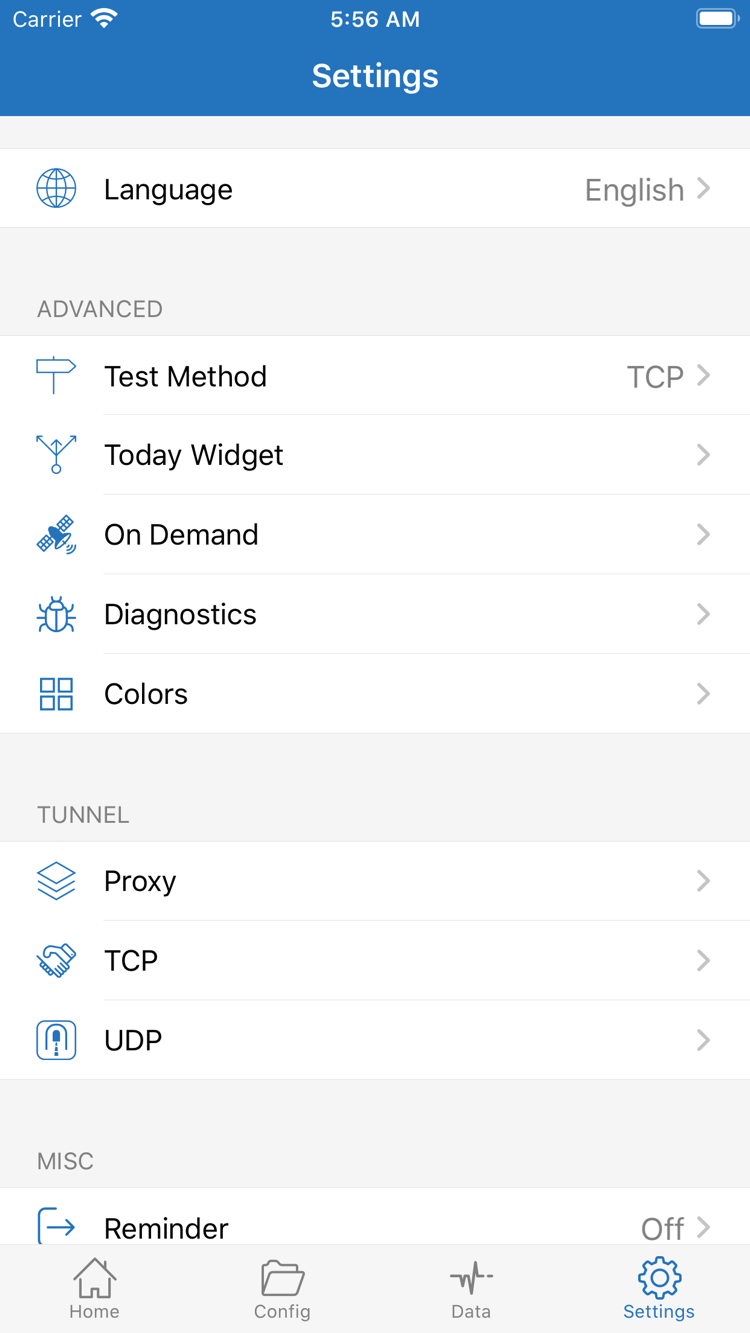
Open Settings, review Test Method, and compare the test result with access to the actual destination. Failure with one test method doesn't necessarily mean every app request will fail. Conversely, a test may return a result while a page still won't load due to the destination, DNS, or rules. First identify exactly which test and destination failed, then narrow down the cause. Don't change DNS, TCP, and UDP settings all at once.
Connection Status Keeps Changing? Check On Demand
On Demand controls when a connection starts under specified conditions; it doesn't determine how Global Routing assigns traffic. If the connection returns after you turn it off manually or changes when you switch networks, check for existing On Demand conditions. For a repeatable manual test, note the original settings and temporarily turn off automatic triggers if needed. Restore them after verifying the connection, based on your needs.
Only Some Destinations Fail? Check Rules and Diagnostics
If most destinations work but one doesn't, check the relevant Rule and final policy in Config, then review related records in Data. Diagnostics in Settings can help with further troubleshooting, but diagnostic information is useful only when matched to the time of the issue, selected server, and routing mode. Before sharing screenshots or records, remove subscription URLs, passwords, access credentials, and unnecessary personal network details.
If switching modes consistently reproduces the difference, keep the comparison results; you don't need to reinstall the app first. Reinstalling means restoring your connection details and won't automatically fix incorrect fields or an expired subscription. For more questions about purchasing, subscriptions, and settings, see the FAQ. For protocol parameters and selection guidance, read the Shadowsocks and Protocol Reference.